
GamePad Tester - Test PS5, PS4, PS3 & Xbox Controllers
Test your PS5, PS4, PS3, Xbox, Nintendo, and other controllers directly in your browser using this gamepad tester. No downloads required.
Gamepad Tester
Gamepad #1
Not foundGamepad #2
Not foundGamepad #3
Not foundGamepad #4
Not foundConnect Your Controller
Supported Browsers: Chrome, Firefox, Edge, Opera
Connect via USB or Bluetooth
Press any button to activate
Test all buttons and sticks
Multi-Controller Support
Test up to 4 controllers simultaneously with individual visual feedback.
Stick Drift Detection
Identify analog stick drift issues with precise position tracking.
Real-Time Feedback
Get immediate visual feedback for all controller inputs.
Browser-Based
No downloads required. Works directly in your web browser.
Last updated · September 2026
Test Your Gamepad Controller Free Online
A browser-based gamepad tester reads live button states, axis values, vibration response, and trigger depth from any connected controller. This guide covers which tool to use and what the numbers actually mean.
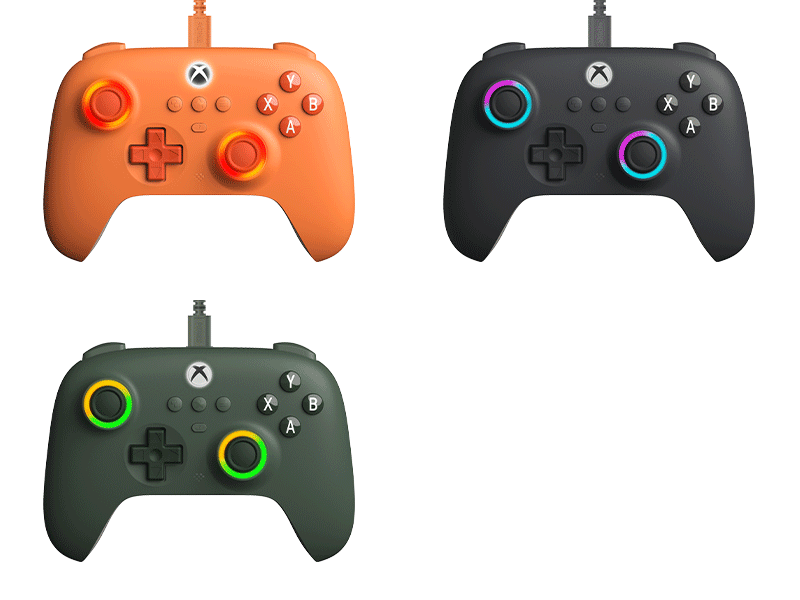
Controller models supported
Dedicated diagnostic tests
Controllers at a time
Setup time required
Which Gamepad Tester to Use
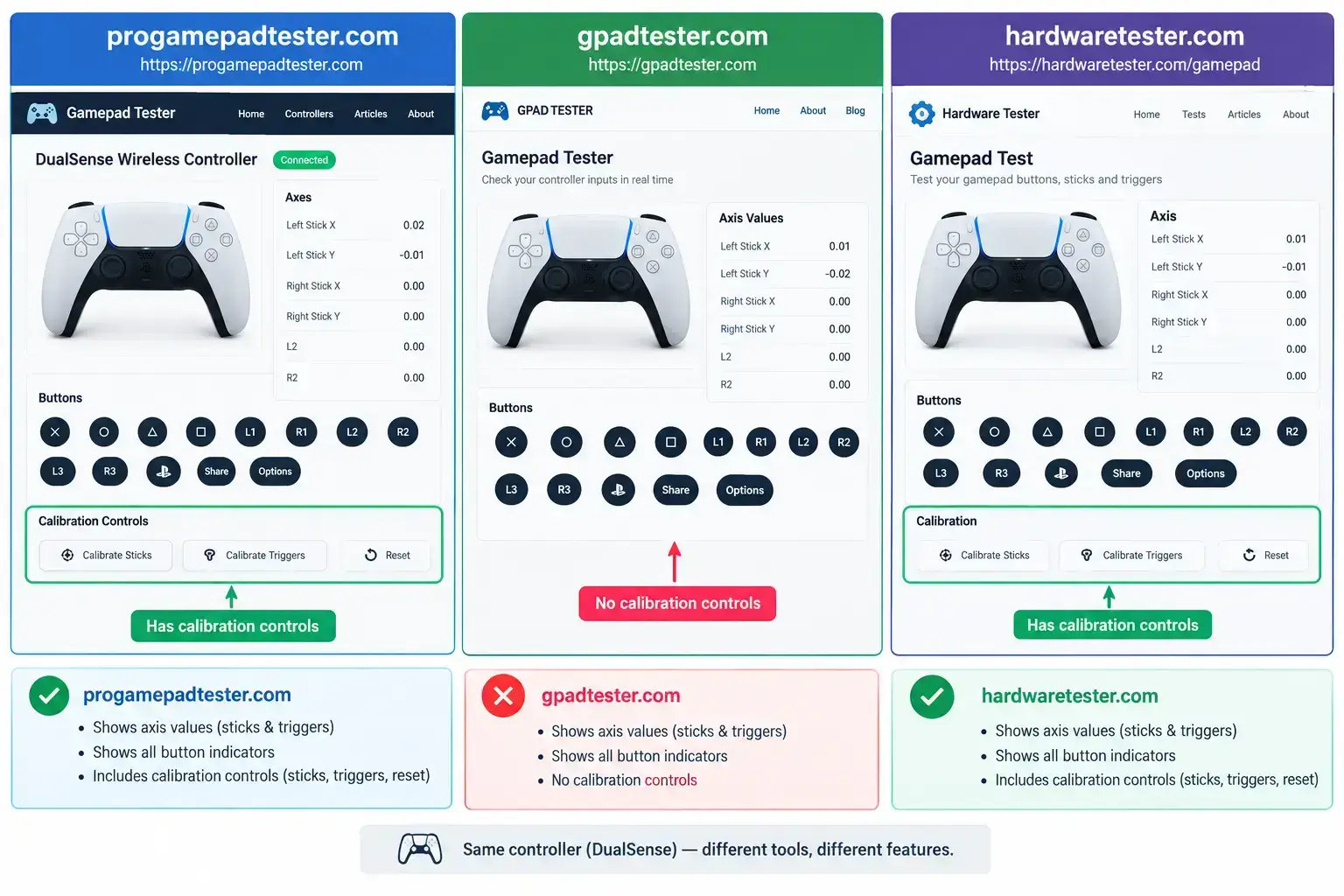
Three browser tools cover controller diagnostics. They’re not interchangeable; pick by what you’re trying to confirm.
progamepadtester.com
progamepadtester.com
gpadtester.com
hardwaretester.com/gamepad
For most users confirming stick drift before a repair decision, progamepadtester.com is the fastest path to a clear answer. Use gpadtester.com if you need analog calibration or the DualSense microphone test specifically.
| Tool | Best for | Key benefit | Limitation |
|---|---|---|---|
| progamepadtester.com recommended | Drift, button, trigger, and deadzone diagnosis | Fast; drift-focused; covers PS3–PS5, Xbox, Switch | No calibration or mic test |
| gpadtester.com | Advanced diagnosis incl. calibration and mic | Calibration tool; DualSense mic test; repair guides | More features than most users need |
| hardwaretester.com/gamepad | Quick HID detection confirmation only | Minimal; fast-loading | No vibration detail, calibration, or repair context |
Run a Full Controller Test in Under 60 Seconds
Follow these steps in order. Step 4 is the one most guides skip; it’s the most important single action in the whole diagnostic.
Connect your controller via USB, or pair it via Bluetooth through Windows Settings.
Open Chrome, Edge, or any Chromium browser, not Firefox for vibration tests.
Firefox doesn't implement the vibration API. Vibration tests silently fail in Firefox; see the callout below.
Navigate to progamepadtester.com and press any button on your controller to activate detection.
Set the controller flat on a desk, completely untouched. Watch both stick axis values for ten seconds.
This is the drift observation step. If the X or Y value moves away from zero on its own, stick drift is confirmed at the hardware level.
Why this step matters: placing the controller still and reading the resting axis value for ten seconds is more diagnostic than any active button test. It directly answers whether drift is hardware wear or a game-side glitch and determines whether repair or replacement makes financial sense.Press each button individually and confirm it highlights correctly on the display.
Pull both triggers to their full travel depth and verify each reaches its maximum value.
Run the vibration test and confirm both rumble motors respond with perceptible vibration.
What the numbers mean
Most testers display raw axis values with no frame of reference. These thresholds tell you whether a reading is normal noise, early drift, or confirmed hardware wear.
±0.00 – 0.02
Normal signal noise
Expected variation from a healthy potentiometer resting at centre. No action needed.
±0.05 – 0.09
Early drift
Consistent resting offset. Monitor across sessions. A Steam Input deadzone adjustment can mask this temporarily while you evaluate the hardware.
±0.10 and above
Confirmed hardware wear
Potentiometer degradation is significant. Software deadzones become invasive at this level. Repair or Hall effect upgrade is the appropriate response.
The Firefox vibration gap
The most common source of incorrect “my rumble motors are broken” conclusions and a 15-second fix.
Firefox vibration test produces no output, and that’s not a hardware fault
Firefox does not implement the GamepadHapticActuator vibration API as of September 2026. Every browser-based vibration test, including progamepadtester.com, gpadtester.com, and hardwaretester.com, relies on this interface. A no-response result in Firefox means your browser is the constraint, not your controller’s rumble motors.
The button and axis tests work correctly in Firefox. Stick drift readings, button state, and trigger depth are all valid there. The vibration test alone requires a Chromium-based browser.
Switch to Chrome or Edge just for the vibration test takes 15 seconds and gives you a correct result.
Frequently Asked Questions
Get quick answers to common questions about an Online Gamepad Tester
Ready to test your controller?
Covers browser-based controller testing on Windows 10 and 11 using Chrome, Edge, and Chromium-based browsers. Does not address mobile browser gamepad testing, console-native diagnostic modes (PS5 Settings → Accessories → Calibrate, or Xbox system diagnostics), or Linux and macOS browser API behaviour, which differ from the Windows stack covered here.
info[@]progamepadtester.com
For all inquiries regarding technical support
feedback[@]progamepadtester.com
To share your experience and feedback
We typically respond within 24 hours.
For faster support, please mention:
- Your browser and operating system
- Device type (PS5, Xbox, PS4, etc.)
- Specific error or issue description
- Steps you've already tried